
Colour-blind view
See roughly how someone who is colour-blind sees your colours or a picture, and check whether your text has enough contrast.
Colour-blind view
Colour-blind view
E-powermentColour-blind view
Your colours with colour blindness
We start with red, orange and green, like a traffic light. Replace them with your own colours.
This is how your colours look
An approximation: everyone sees slightly differently, and your screen plays a part too.
Typical vision
This is how you see it with typical colour vision.
- Colour 1#d7263d
- Colour 2#f4a300
- Colour 3#2e9e44
Protanopia
The eye lacks the cells for red light. Red and green are hard to tell apart, and red looks darker.
About 1 in 100 men, far fewer women.
- Colour 1#5f583c
- Colour 2#bfa800
- Colour 3#a0903b
No colours that look very similar.
Deuteranopia
The eye lacks the cells for green light. Red and green are hard to tell apart.
About 1 in 100 men, far fewer women.
- Colour 1#8a7d37
- Colour 2#d2bb10
- Colour 3#93864b
Very similar: colours 1 and 3.
Tritanopia
The eye lacks the cells for blue light. Blue and green look alike, and so do yellow and pink.
Very rare.
- Colour 1#ed0031
- Colour 2#ff8e8b
- Colour 3#009a8a
No colours that look very similar.
Achromatopsia
The eye sees no colour, only light and dark. Everything is grey.
Very rare.
- Colour 1#707070
- Colour 2#b4b4b4
- Colour 3#8a8a8a
No colours that look very similar.
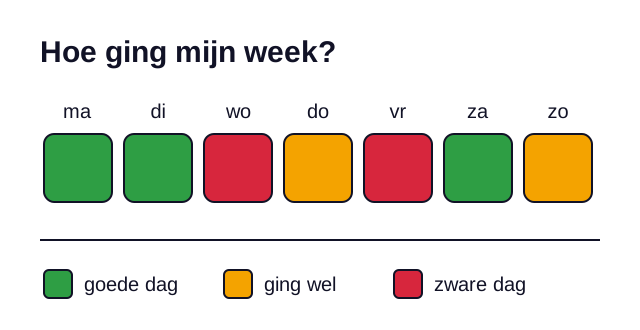
Do not use colour alone
People who see colours differently miss what you only show with colour. So say it in another way too:
- Add a word. Do you work with green, orange and red, as in a relapse prevention plan? Then also write down which phase it is.
- Also use a shape, a symbol or a pattern, such as a dotted line next to a solid line.
- Make sure there is enough difference between light and dark. You can check this under
This is also a requirement in WCAG, the international standard for accessible websites and apps: success criterion 1.4.1, level A.
Made with the Colour-blind view by E-powerment: e-powerment.nl/en/tools/kleurenbril/.
How it works
- Choose a step above the tool: Colours, Picture or Contrast. You can start with any step.
- In Colours: choose each colour with the colour picker, or type the colour code, such as #2e9e44. You see side by side how they look with typical vision and with four types of colour blindness, and which colours start to look very similar.
- In Picture: look at the example, or press Choose your own picture and choose a photo, a leaflet or a screenshot from your device.
- In Contrast: choose a text colour and a background. You see the contrast and whether it is enough. Is it too low? Then you see a similar text colour that does have enough contrast.
- With Print, above the tool, only the result of the step is printed. You can look at it with a colleague or a designer.
Four types of colour blindness
Your eye has cells for red, green and blue light. If one kind does not work, some colours are hard to tell apart. About 8 in 100 men and 1 in 200 women see red and green less well. Most of them have a milder form than you see here.
- Protanopia. The eye lacks the cells for red light. Red and green are hard to tell apart, and red looks darker. About 1 in 100 men has this.
- Deuteranopia. The eye lacks the cells for green light. Then too, red and green are hard to tell apart. About 1 in 100 men has this.
- Tritanopia. The eye lacks the cells for blue light. Blue and green look alike, and so do yellow and pink.
- Achromatopsia. The eye sees no colour, only light and dark. Everything is grey.
Tritanopia and achromatopsia are very rare: about 1 in 30,000 to 50,000 people.
Good to know
- A simulation is an approximation. Everyone sees slightly differently, and your screen plays a part too: the brightness, the colour settings, a night mode.
- Many people have a milder form. They see something between typical vision and the simulation.
- Tritanopia is the hardest to simulate. That simulation is the least precise.
- ‘Look very similar’ is our own limit, not an official standard. So look for yourself as well, and if you can, ask someone who is colour-blind to look with you.
- Colour alone is not enough to make something clear. That is a WCAG requirement (success criterion 1.4.1). Read more in Perceivable: nobody misses information.
What the rules say about contrast
Contrast is the difference in light and dark between text and background. The higher the number, the more the text stands out. 1:1 means: no difference. 21:1 is the highest: black on white. Three WCAG requirements are about contrast (read more in what is WCAG):
- 1.4.3, level AA. Normal text has a contrast of at least 4.5:1. Large text at least 3:1.
- 1.4.11, level AA. Anything you need in order to see or use something has at least 3:1 against the colour next to it. Think of the border of an input field, an icon or a line in a chart.
- 1.4.6, level AAA. Normal text at least 7:1, large text at least 4.5:1.
Level AA is the usual standard. AAA is stricter. Large text is text of at least 18 point, or 14 point if it is bold. On a screen that is about 24 pixels, or about 18.5 pixels bold.
- We do not round. If the contrast is 4.499:1, it does not meet 4.5:1. That is why the number on your screen is cut off downwards: you see 4.49:1.
- Logos and text that is only decoration do not have to meet these requirements. Neither does a button that is switched off.
- Is your text on a photo or on a colour gradient? Then check the spot where the background looks most like your text colour.
- You cannot enter a transparent colour here. Use the colour as you see it on the screen, together with what is underneath.
How we calculate
For protanopia, deuteranopia and tritanopia we use the model by Machado, Oliveira and Fernandes from 2009. Chrome and Edge also use that model in their developer tools. For achromatopsia only the brightness remains, calculated as in WCAG.
We measure the difference between two colours in OKLab, a way of describing colours from the colour standard for websites (CSS). If the difference is smaller than 0.07, we say two colours ‘look very similar’. Black and white differ by 1.
We calculate the contrast with the formula from W3C, the organisation behind WCAG. This is how you can do it yourself.
Work out the contrast yourself
- Write the colour code as three numbers from 0 to 255: red, green and blue. Each pair of characters is one number. The letters a to f stand for 10 to 15. Multiply the first character by 16 and add the second. For #1a2b3c, red is: 1 × 16 + 10 = 26.
- Divide each number by 255. Is the result 0.04045 or lower? Then divide it by 12.92. Is it higher? Add 0.055, divide by 1.055 and raise the result to the power of 2.4.
- Work out the brightness: 0.2126 × red + 0.7152 × green + 0.0722 × blue. You get a number from 0 (black) to 1 (white).
- Do the same for the other colour.
- The contrast is: the highest brightness plus 0.05, divided by the lowest brightness plus 0.05. Black on white gives (1 + 0.05) / (0 + 0.05) = 21, so 21:1.
Your colours and your picture
Everything happens in your browser. Your picture is read on your own device and goes nowhere. We save nothing: if you close the page, everything is gone.
Sources
Read on 28 and 29 September 2026.
- Machado, Oliveira & Fernandes (2009): A Physiologically-based Model for Simulation of Color Vision Deficiency (external website)
- Chrome for Developers: Simulating color vision deficiencies in the Blink Renderer (external website)
- Colour Blind Awareness: Types of colour blindness (external website)
- National Eye Institute: Types of Color Vision Deficiency (external website)
- W3C: Web Content Accessibility Guidelines (WCAG) 2.2 (external website)
- W3C: Understanding Success Criterion 1.4.1: Use of Color (external website)
- W3C: Understanding Success Criterion 1.4.3: Contrast (Minimum) (external website)
- W3C: Understanding Success Criterion 1.4.6: Contrast (Enhanced) (external website)
- W3C: Understanding Success Criterion 1.4.11: Non-text Contrast (external website)
- W3C: CSS Color Module Level 4 (OKLab and ΔEOK) (external website)
More tools
See all toolsObstacle course
Try for yourself what it is like to use a website when you cannot see well, your hand shakes, reading is hard or you only have a keyboard. Then you repair the website and try again.
For: With your client
Alt text helper
Write good alt text for an image. Answer a few questions and get advice and a draft you can copy.
For: With your client
Plain language check
Check whether your Dutch text is easy to read. See long sentences and difficult words, with a simpler word next to them.
For: With your client
Build something together?
Send us a message if you have an idea, are missing something or would like to try a tool with your team. Tell us in a few sentences what it is about. We read everything, and it commits you to nothing.